
Creating Subcorpora#
A subcorpus is a corpus you build yourself by filtering one of the Swiss-AL corpora. It lets you narrow a large collection down to the texts that matter for your research question — a period, a group of sources, or the documents that mention a particular word — and analyse that selection with the same tools as any other corpus.
Important
Creating subcorpora requires a login and a project of your own. Subcorpora are stored in the project in which you create them. See the Quickstart Guide.
Why create a subcorpus?#
Some analyses are only possible, or only meaningful, on a selection of texts:
Focusing on a topic. A keyword filter collects all documents that mention, for example, Corona. Frequencies, contexts, and topics then describe the discourse around that term rather than the whole corpus.
Comparing groups of sources. Separate subcorpora for selected media or organizations make it possible to compare how they write about the same issue (see the Climate Change case study).
Restricting the time span. A subcorpus covering 2020–2022 isolates a phase of a debate from what came before and after.
Finding texts that contain several terms together. The search modes can combine terms only with OR. A subcorpus with several keywords and the ALL option returns only documents containing every one of them (AND).
Using Keywords. The Keywords tool works on subcorpora only, because it compares your selection with its parent corpus.
Step by step#
Open the corpus selection menu and select Create custom corpus. The wizard leads you through the filters one step at a time; confirm each step with Next.
Tip
The box Remaining Documents at the bottom right shows how many documents your selection currently contains. Below the number it lists whether there are enough documents to calculate a Topic Model, a Semantic Space, and Keywords (see size requirements). Watch it as you go: it tells you early whether a filter is too narrow for the analyses you plan.
1. Language and Type#
Select the language and the corpus type of the corpus you want to filter. The number in brackets shows how many corpora of that type are available. Project corpora are listed under the type of their data; the DE Organizational Sepsis Corpus, for example, appears under Organizational.
2. Parent Corpus#
Choose the corpus to filter. This becomes the parent corpus of your subcorpus: all documents in the subcorpus come from it, and it serves as the reference corpus in a keyword analysis.
Choose the parent corpus deliberately. A subcorpus can only be as broad as the corpus it comes from, and its type determines which categories you can filter by in the next steps.
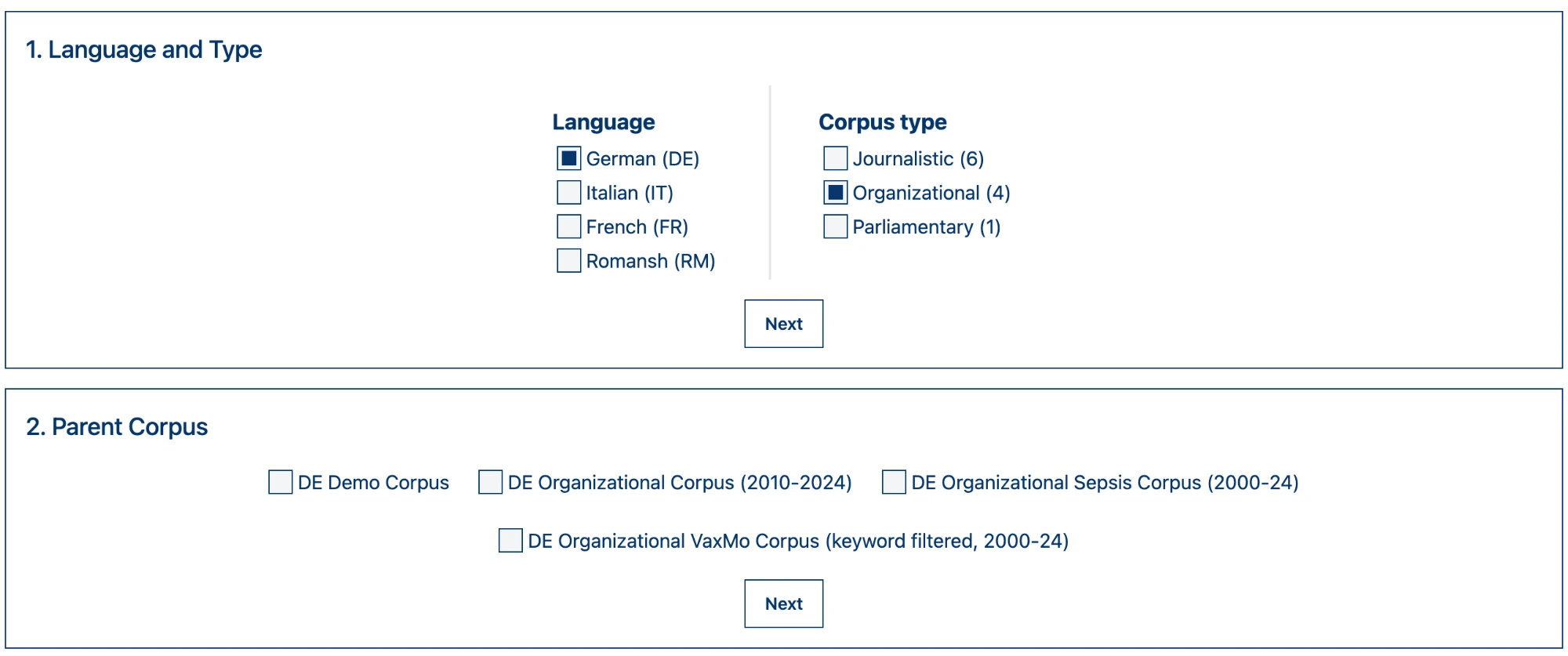
Fig. 8 Selecting language, corpus type, and parent corpus.#
3–4. Categories#
The next two steps filter by the categories into which the parent corpus’s sources are grouped. Which categories appear depends on the corpus type:
Corpus type |
Step 3 |
Step 4 |
|---|---|---|
Social System |
Field Of Activity |
|
Media Type |
Publisher |
|
Social System (only politics) |
Field Of Activity (only party) |
For parliamentary corpora, these two steps offer a single category each, so they do not narrow the selection. To narrow it, use the sources, date range, or keywords in the following steps.
Tick All to keep every category, or select only the ones you need. Within a step, the selected categories are combined: choosing civil society and politics keeps documents from both.
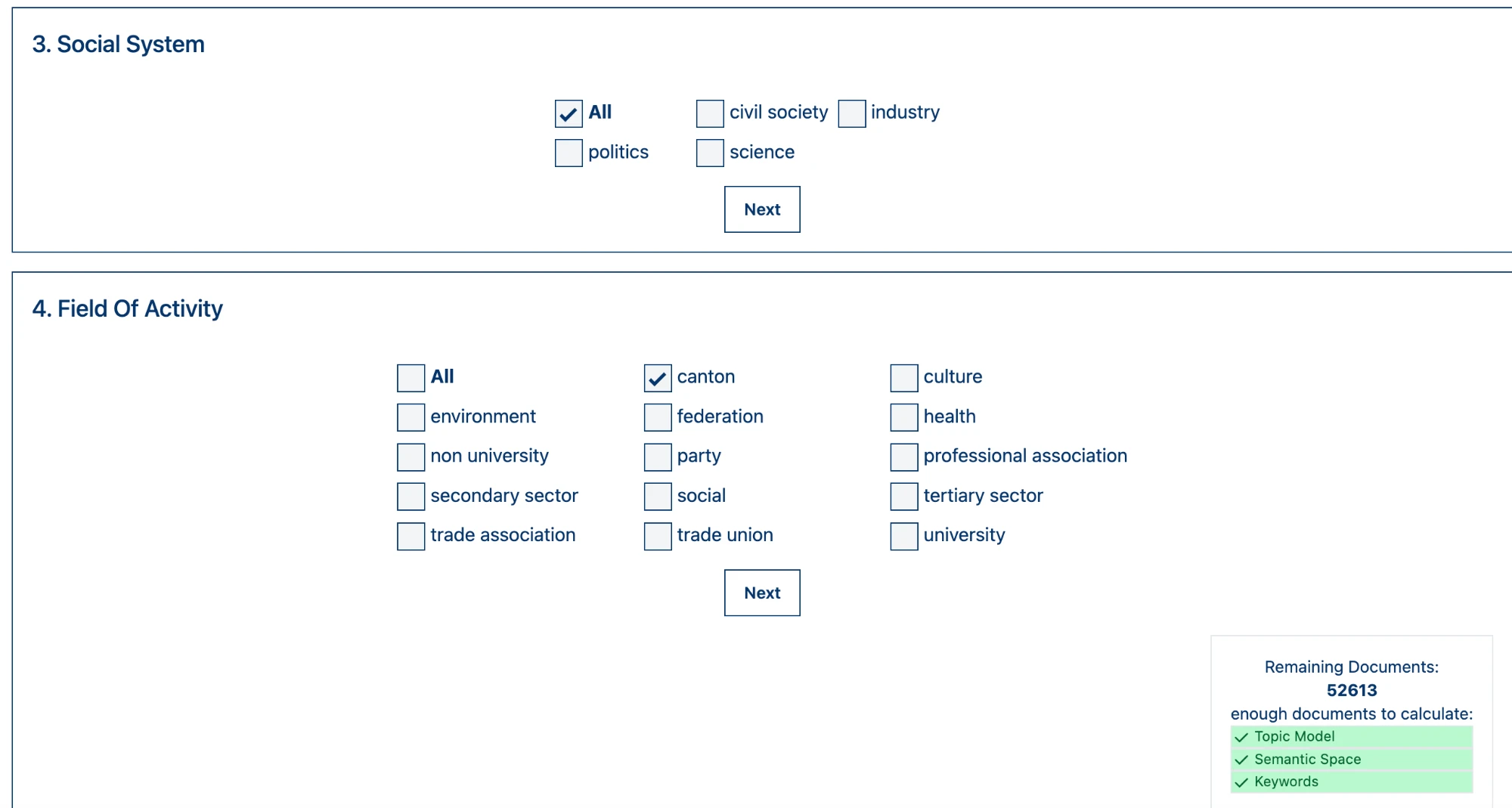
Fig. 9 Filtering an organizational corpus by social system and field of activity.#
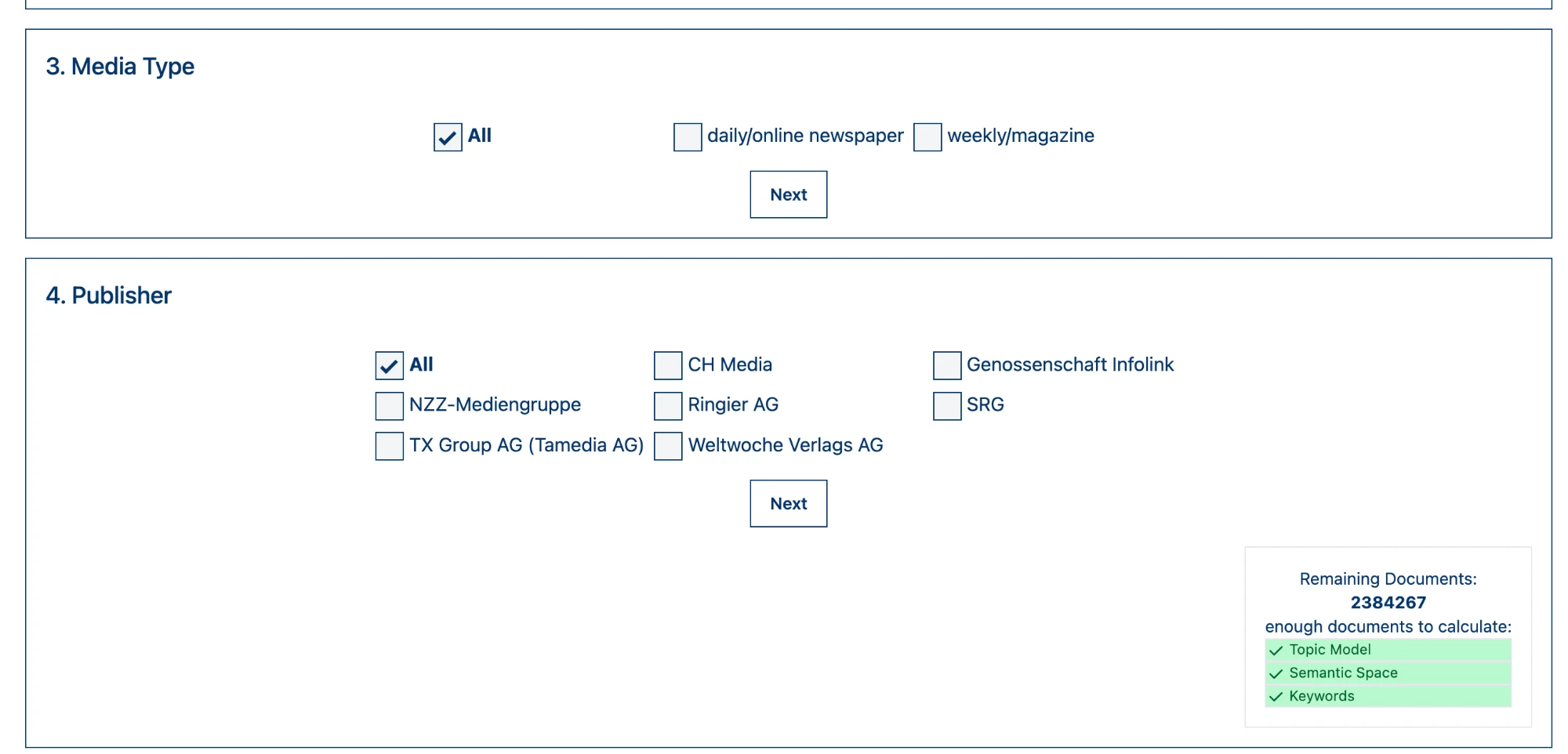
Fig. 10 Filtering a journalistic corpus by media type and publisher. The box at the bottom right shows which analyses the current selection is large enough for.#
5. Sources#
Select individual sources, for example single newspapers or organizations. Only sources that belong to the categories chosen before are offered.
6. Date Range#
Enter a start date under From and an end date under To to limit the subcorpus to documents published within that period. The date range cannot extend beyond the period covered by the parent corpus.
7. Keyword Filtering (optional)#
Keywords restrict the subcorpus to documents that contain particular words. Type a keyword into the field and press Enter to add it to the keyword list; repeat for further keywords. If you leave the list empty, no keyword filter is applied.
Enter each keyword as a lemma: keyword filtering is case-insensitive and matches all forms in the word’s paradigm, exactly as in Quick Search. Entering Impfung, for example, also finds Impfungen.
With several keywords, choose under Select document if how they are combined:
Option |
Logic |
Returns |
|---|---|---|
ALL of the keywords appear in document (default) |
AND |
only documents containing every keyword |
ANY of the keywords appear in document |
OR |
documents containing at least one of the keywords |
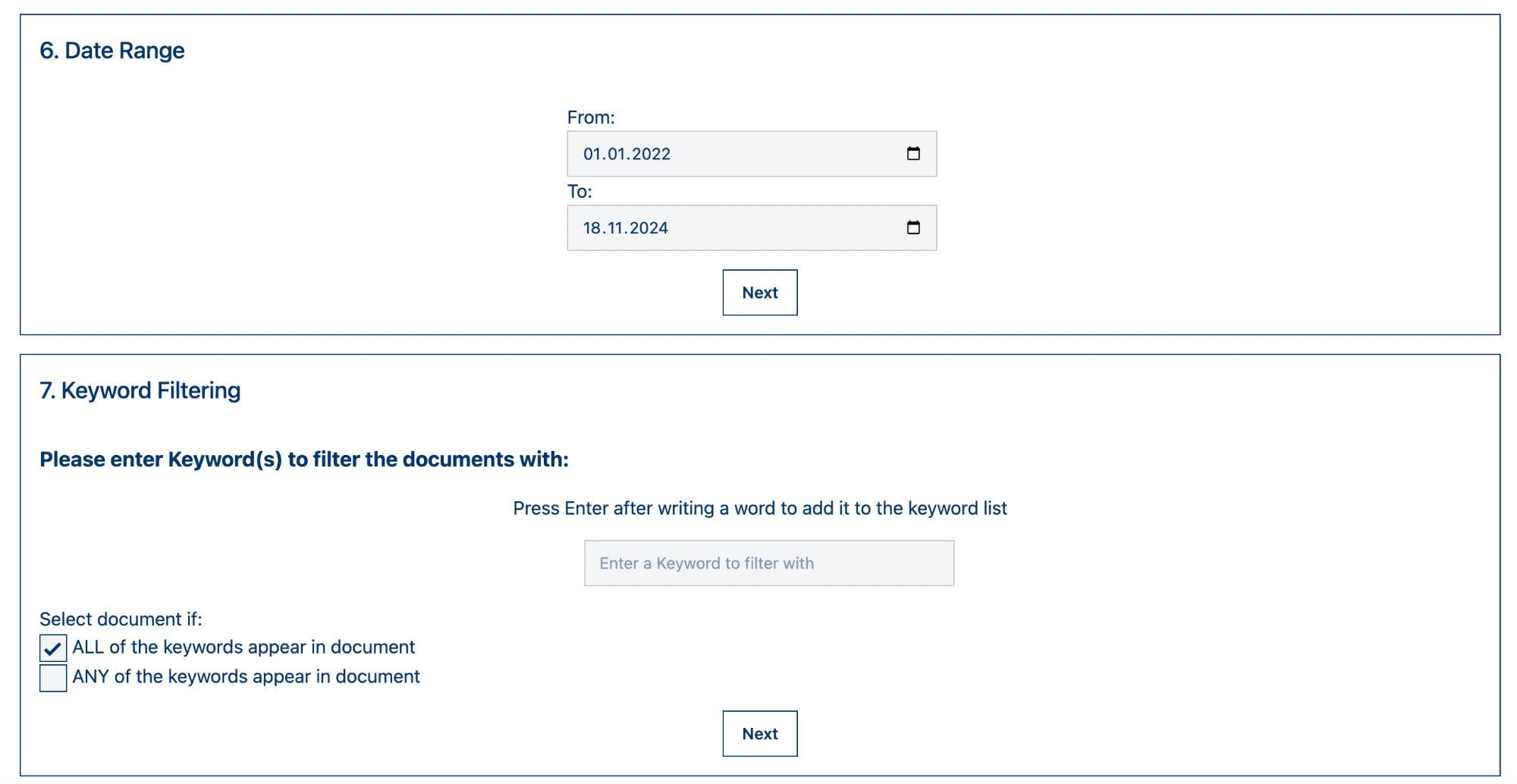
Fig. 11 Setting the date range and adding keywords.#
Tip
Use only single-word keywords; multiword expressions are not supported in the wizard. For those, create the subcorpus from a search. To capture spelling variants (Covid, Corona, Coronavirus), enter each variant as a separate keyword and switch from the default ALL to ANY.
Note
A keyword filter selects whole documents. A document that mentions Corona once in passing is included just as much as one that is entirely about the pandemic. Check in Context of Words whether your subcorpus contains what you expect.
8. Save corpus#
Give the subcorpus a name that describes the selection, for example DE Journalistic — Corona, 2020–2022, daily/online newspapers. A descriptive name helps you keep several subcorpora apart and makes it easier to cite your analyses later.
After you save, the platform builds the subcorpus. Click Go Back to the Workspace to return to your analyses; the subcorpus then appears in the corpus selection menu of your project.
Note
How long processing takes depends on the size of the subcorpus. Calculating the models for Topics and Semantic Space takes a few minutes for very small subcorpora and up to several hours for very large ones. It can also take longer when many users are creating subcorpora at the same time.
Creating a subcorpus from a search#
The wizard accepts only single-word keywords. To build a subcorpus around a multiword expression, a sequence of words, or a more complex pattern, start from a search instead. All four Search Corpus tools offer the three search modes and let you turn the documents matching your query into a subcorpus:
Search mode |
Useful for subcorpora around… |
Example |
|---|---|---|
a word in all its inflected forms |
Impfung |
|
an exact word form, alternatives (OR), word beginnings or endings, a part of speech |
words starting with Migration |
|
multiword expressions, sequences, regular expressions, annotations, named entities |
No Billag, Ehe für alle |
Open a Search Corpus tool and run your query in the search mode you need.
Check the hits, for example in Context of Words, to make sure the query finds what you mean and not more.
Click Create sub-corpus from query below the search field. The subcorpus contains all documents with at least one hit for the query.
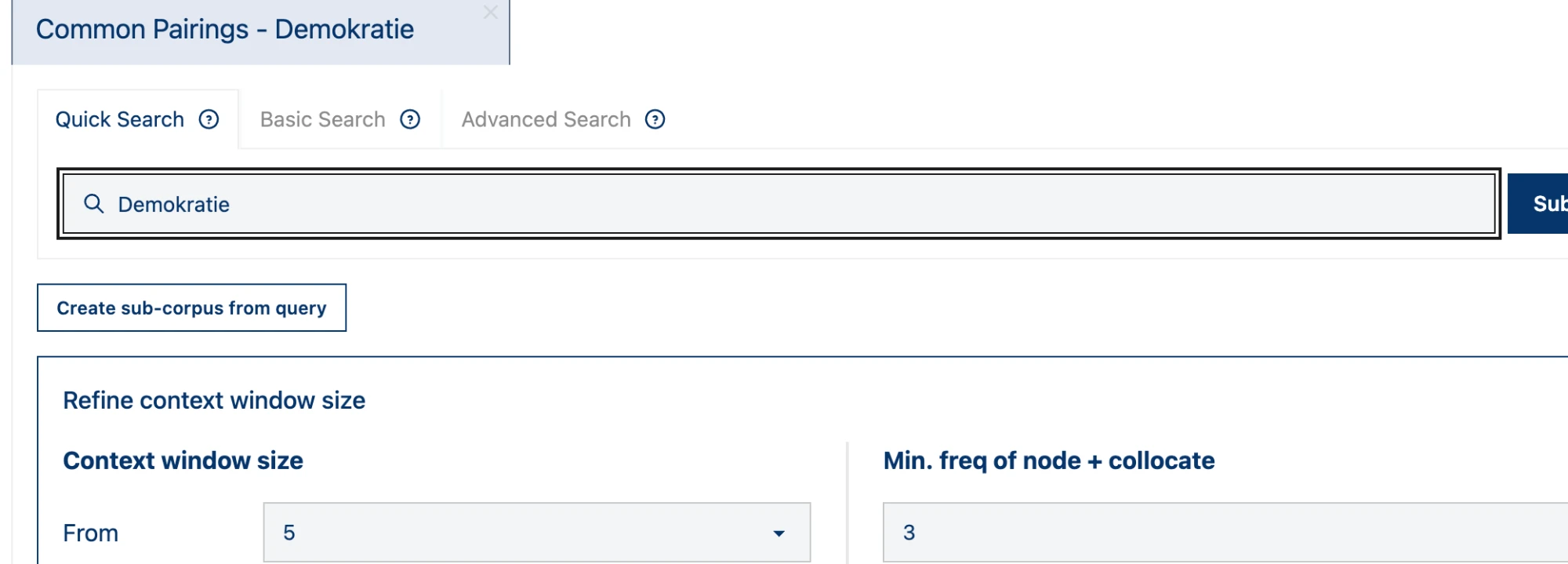
Fig. 12 Creating a subcorpus from a Quick Search query in Common Pairings.#
Subcorpora created this way behave like any other subcorpus: the same analyses are calculated, the same size requirements apply, and the corpus you searched becomes the parent corpus.
Note
Record the exact query, including the search mode, as part of documenting your subcorpus. The same string can return different documents in Quick, Basic, and Advanced Search.
What is calculated for a subcorpus#
When a subcorpus is created, the platform prepares it for analysis. Some of these steps only run if the subcorpus is large enough:
Analysis |
Requirement |
Used by |
|---|---|---|
Frequencies, contexts, document lists, pairings |
none |
Search Corpus tools |
Keyword analysis against the parent corpus |
none |
|
Topic model with 50 topics |
at least 1,000 documents |
|
Word embeddings |
at least 10 million tokens |
Important
Check the number of documents and tokens in Overview after building a subcorpus. If it is below a threshold, the corresponding tool is not available. In that case, consider widening the selection — a longer time span, more sources, or ANY instead of ALL.
Checking your subcorpus#
Before analysing, open Overview. It shows the parent corpus, the period, the number of documents and tokens, and the distribution across sources and years. Ask yourself:
Does the period match what you intended?
Are a few sources dominating the selection? A finding about “the media” reads differently if most documents come from one outlet.
Are there years with very few documents that could distort a frequency trend?
Documenting your subcorpus#
The platform does not keep a log of how a subcorpus was defined. Note down the parent corpus, the date, and every filter you set while you build it. This is what you need to cite an analysis based on a subcorpus and what allows others to rebuild your selection.
Record |
Example |
|---|---|
Parent corpus |
DE Journalistic Corpus (high reach+regional, 2018–2025) |
Date of creation |
6 September 2026 |
Categories and sources |
media type: daily/online newspaper |
Time span |
January 2020 – December 2022 |
Keywords and combination, or search query and mode |
Corona (ANY) |
Size |
4,312 documents; 2.1 million tokens |
See also
Corpora — which parent corpora are available
Keywords — comparing a subcorpus with its parent
Citing Swiss-AL — how to cite work based on a subcorpus